Welcome to the IDX Home Search Help Center!
Check out our tips, step-by-step tutorials, troubleshooting, and have all of your questions answered by our support team.
Provided by the Real Estate Agent Directory™ on Facebook
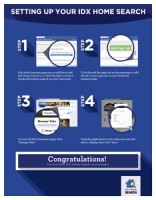
Download our start-to-finish IDX Home Search guide
Click the link below to get a start-to-finish guide on setting up and managing your IDX Home Search service!

Include a link to your Home Search in your marketing.
You can bring more traffic to your home search by linking to it in marketing materials. Some places you may want to include the link are in your social media posts on sites like Twitter and LinkedIn. Additionally, adding it to your email signature will make it easy for current or prospective clients to access the search. To obtain the URL, just head over to your search page, highlight the full link in your browser’s address bar, right-click and hit copy. You can then paste the link wherever you want to use it.

Make sure your home search tab is easily visible on your Facebook page.
To ensure visitors can easily search for homes from your page, make sure your search tab is one of the first 3 displayed. If your tab isn’t visible, select the ‘More’ drop-down under your cover photo and click ‘Manage Tabs.’ Drag the ‘Find a Home’ bar into one of the top 3 slots to have it appear on your page. Then click ‘Save.’
Pin a post with a link to your home search on your business page.
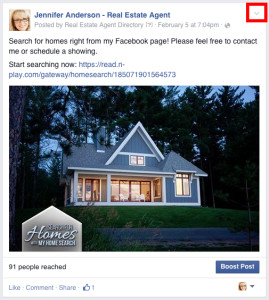
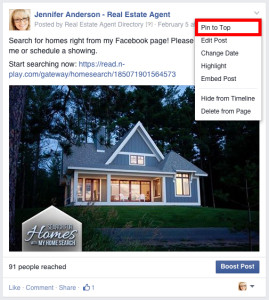
To bring more awareness to your home search, pin the most recent promotional post that includes a link to your search to the top of your Facebook business page. To pin a post, click on the small grey arrow in the top right hand corner and select “Pin to Top.” If you have a post that does not already include a link to your home search, simply select “Edit Post” from the drop down menu and edit the text to include your link.
Send a welcome message to new fans with a link to your home search tab.
When connecting with new fans, send them a personalized message thanking them for being a fan of your page. Make sure to include a link to your home search tab in your welcome message, letting them know that they can search for available homes in your MLS right from your page.
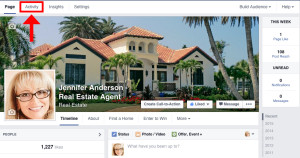
To see who has recently liked your business page, go to your Activity Log and look at your Recent Notifications. View a complete list of your page fans by clicking the small orange icon next to a page like notification.
Instructions
How to add the 'Find a Home' tab?
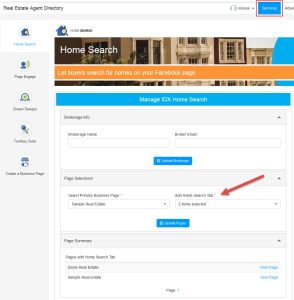
After you have activated your IDX Home Search, navigate to the IDX Setup page from the Services tab. On Step 4 of the setup process, click on the ‘Add Home Search Tab’ dropdown and select the business page(s) you would like to add the ‘Find a Home’ tab to. Click ‘Save Page Selections’ when you are done.
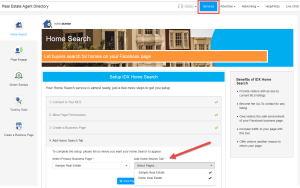
To change your Home Search tab preferences, navigate to the IDX Manage page from the Services tab. Under ‘Page Selections’, click on the ‘Add Home Search Tab’ dropdown and select the business pages you would like to add or remove.
How to create a Facebook business page?
Step 1: Go here Click Here into your web browser bar to start creating your Facebook business page.
Step 2: Select ‘Local Business or Place.’
Step 3: Select your business’ category (e.g. Real Estate) and fill in your business information, including your business name, street address, city and state, zip code and telephone number. Check the box that says ‘I agree to Facebook Pages Terms’ and click the blue ‘Get Started’ button.
Step 4: Upload a profile picture for your Facebook business page. Click on ‘Upload From Computer’ if you are uploading a picture located on your computer or mobile device. Click on ‘Import From Website’ if you are uploading your picture from the Internet.
Step 5: After your profile picture has uploaded, click the ‘Next’ button.
Step 6: Fill in biography information including a description of your business and your website link. Adding this information improves the ranking of your page in search. Indicate whether your page will represent a real establishment, business or venue by selecting ‘Yes’ or ‘No.’ Click ‘Save Info’ to continue.
Step 7: Select ‘Skip’ enabling ads.
Step 8: You have completed building your Facebook business page. Learn more about how to manage your Facebook business page here: Click Here
How to cancel IDX Home Search?
You can remain a member of the Real Estate Agent Directory at no charge.
You can still register for IDX Home Search even if your MLS is pending. If you order the service in advance of MLS activation, your credit card will NOT be charged until your market becomes live. We will notify you in advance via email and through Facebook notifications once your MLS market becomes available. There are no contracts, and you can cancel at any time. Upon MLS activation, you will be notified by email.
How do I pin a post with a link to my home search on my business page?
How to customize your ‘Find a Home’ tab?
To change the name of your tab:
1. Navigate to your Facebook business page.
2. Click the downward arrow on the right side of your tabs. All of your tabs will appear.
3. Hover over your ‘Find a Home’ tab and a pencil icon will appear.
4. Click the pencil icon, then click ‘Edit Settings.’
5. Type in your Custom Tab Name; click ‘Save,’ then click ‘Okay.’
To upload a custom tab image/replace current tab image:
1. Navigate to your Facebook business page.
2. Click the downward arrow on the right side of your tabs. All of your tabs will appear.
3. Hover over your ‘Find a Home’ tab and a pencil icon will appear.
4. Click the pencil icon, then click ‘Edit Settings.’
5. Click ‘Change’ next to Custom Tab Images.
6. Hover over the house image and a pencil icon will appear.
7. Click ‘Edit’ next to the pencil icon.
8. Click ‘Choose File’ and select the file you would like to use as the custom tab image. You can upload a JPG, GIF, on PNG file. The size of the image must be 111×74 pixels. File size limit is 5 MB. If your upload doesn’t work, try a smaller picture. Double click the file or click ‘Open.’ Your new custom tab image will now appear on your Facebook business page. (Note that if your ‘Find a Home’ tab is not in the top row of your tabs on your Facebook page, you may want to move the tab to the top row for greater visibility.)
How to manage your Facebook business page?
Make sure you have added Directory tabs to your business page to make the most of your Real Estate Agent Directory’s membership.
Learn more about how to manage your Facebook business page here:Click Here
How do you send a welcome message to new fans with a link to your home search tab ?
To see who has recently liked your business page, go to your Activity Log and look at your Recent Notifications. View a complete list of your page fans by clicking the small orange icon next to a page like notification.
Instructions
How do home buyers search for your listings?
1. Buyers can visit your business page, click on your ‘Find a Home’ tab and perform a search.
2. Buyers can visit your business page, click on your ‘Agent Profile’ tab, click on your ‘Find a Home’ tab and perform a search.
3. Buyers can visit the Real Estate Agent Directory Facebook page – http://www.facebook.com/realestateagentdirectory – click on ‘Find an Agent’, perform a search for agents in their region, click on your agent profile, click on your ‘Find a Home’ tab, and perform a search.
4. If you are advertising your listings (learn more on how to advertise your services and listings here: Click Here ), buyers can click on the ad for your listing, which will take them directly to the listing on your page. There, they can click on your ‘Agent Profile’ tab, click on your ‘Find a Home’ tab, and perform a search.
Facebook page restrictions preventing apps from working.
If your profile was affected by these changes and therefore until you change these restrictions, the app will NOT work for you.
Facebook is aware of the problem it caused and is looking into it; however it is not known when this issue will be fixed.
In the meantime, you can fix the problem yourself in just a few steps as follows:
1. Go to your Facebook business page that you linked to your Directory profile.
2. From your page, click Edit Page and Manage Permissions.
3. Make sure your Age and Country Restrictions on your Facebook business page are set to 13+ and that there is no country restriction. Make sure no country is entered into the Country Restrictions box, and that the Age Restrictions box says ‘Anyone (13+).
4. Save your settings by clicking the Save Changes button at the bottom of the page.
Test to see if the changes worked and your Agent profile will display properly.
1. Go to your Facebook business page that you have installed the apps.
2. Click any of the apps to make sure they are display and are working properly. If the apps display properly without the error message, you have fixed the problem!
If and when Facebook fixes this problem, we will notify you so that you can reset your Country and Age restrictions without negatively affecting the use of your Directory app.
If you have any questions, please email us at [email protected] or you can post a message through our Facebook page located athttp://www.facebook.com/realestateagentdirectory.
Can’t select my business page from the drop-down menu/business page isn’t available.
Also, be sure your business page is published. Once you’ve filled out your Facebook Page and are ready to show it to the public, you need to publish your Page to have it display on the site.
While your Page is unpublished, you’ll see a dialog at the top of your Facebook Page indicating that your Page is not currently visible to non-admins. There is a link there to Publish Your Page. This will instantly set your Facebook Page to published and make it visible to the public. You can also publish your Page from the Edit Page section.
IDX Home Search not working?
If you signed up for IDX Home Search (Services/HomeSearch/Register) and your MLS is currently pending, you will not have an active search. If an MLS is listed as Pending, it means we are still working with the MLS to obtain an IDX feed.
Please note you will not be charged until your MLS market is live. We will notify you in advance via email and Facebook notifications once your MLS market becomes available. There are no contracts, and you can cancel at any time.
When MLS Status is Live
If you signed up for IDX Home Search at a Live MLS, but IDX Home Search isn’t working on your page, you may have an outstanding IDX License Agreement that still requires signature(s). Once all required parties sign the MLS document, the pdf will either go to your MLS for final approval (if required by your MLS) or your IDX Home Search will immediately activate on your business page and agent profile.
Are there additional MLS' fees for IDX Home Search?
What are your recommended browser versions and operating systems?
To ensure the best speed, security and support, we built the Directory so it’s cross-browser compatible with the most recent versions of web browsers. If you’re experiencing difficulties with your agent profile check to make sure you’re using the most up-to-date web browser.
You can check your current browser version by clicking about in the browser menu bar. If your browser is an older version than our recommendations below upgrading is easy and free.
For the best performance we recommend using any of the the following web browsers, you can click on the appropriate link to upgrade your browser.
Firefox (latest version)
http://www.mozilla.org/en-US/firefox/new/
Internet Explorer (versions 9, 10)
*Version 8 of Internet Explorer is suitable but for the best performance we recommend Versions 9 or 10.
http://windows.microsoft.com/en-US/internet-explorer/products/ie/home
Chrome (latest version)
Safari (version 5 or higher)
Opera (versions 10, 11 or higher)
If you’re running Windows XP Home or Professional as your operating system we recommend you use Internet Explorer version 9 or that you upgrade to one of the other browsers listed above.
Upgrading Internet Explorer is easy and free at
http://windows.microsoft.com/en-US/internet-explorer/products/ie/home
App not working on agent's Facebook page?
If you are an agent and are having this problem on your page, view the solution above ‘Facebook Page Restrictions Preventing Apps from Working’ to fix the problem.
Unable to access via mobile device.
Experiencing problems linking directory profile tab to business page?
1. Make sure your business page does not have a country or age restriction. You can adjust this by going to your business page, clicking ‘Edit Info’ and ‘Manage Permissions.’ For your age restrictions, make sure you have Anyone (13+) selected.
2. Make sure you are using the latest version of your web browser.
3. Make sure your business page is published. Once you have filled out your Facebook Page and are ready to show it to the public, you need to publish your Page to have it display on the site.
While your Page is unpublished, you’ll see a dialog at the top of your Facebook Page indicating that your Page is not currently visible to non-admins. There is a link there to Publish Your Page. This will instantly set your Facebook Page to published and make it visible to the public. You can also publish your Page from the Edit Page section.
Can’t Select My Business Page from the Drop-down Menu/Business Page isn’t Available
If the solutions above do not resolve the problem, be sure to check if there is another agent who is also an admin on your business page, who has linked their Directory profile to your page. If so, this would prevent you from seeing the page in the drop-down.
Have Questions?
Phone: 904-800-1811
Email: [email protected]
Available Monday-Friday 9AM-5PM ET
4887 Belfort Road, Suite 400 Jacksonville, FL 32256